💻 🗺️ 📊 🌲
Brett / B.J. Marraccini
Bouncing between information systems, photography and outdoor adventures.
 Washington State
------------
Home
 Essays and Notes
 GitHub Profile
 Resume / CV
 Photography Portfolio
 My Ascent List
 bjmarra[at]outlook[.]com
Configuring WMTS Layers in Goat Maps
by B.J. Marraccini
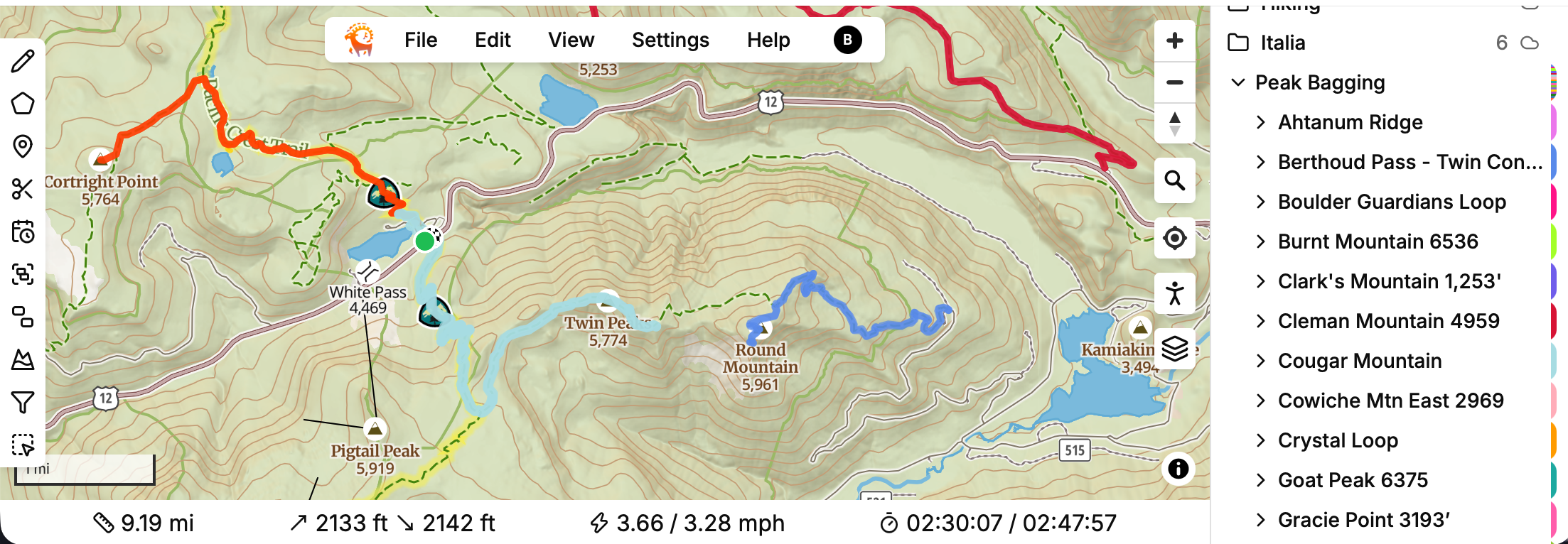
Why Goat Maps
After nearly 10 years as a GaiaGPS subscriber and devotee, I left in 2024 because the Outside acquisition materially changed the soul and nature of GaiaGPS. I give zero focaccia’s about social media and really don’t want my data to be used elsewhere. I wanted to use a simple, focused and configurable terrain, trail and route planning tool.
In 2024, Jesse Crocker and Anna hentzel Johnson started a new app called Goat Maps, and when I learned of why it was created, I came on as an early user and migrated all of my geo-data into Goat Maps for use going forward. Even though Goat Maps development was at a slow pace, I was content with how it worked for my needs. In June 2026 or so, Goat Maps sent users a message that the application and service will be deprecated by end of 2026. For me, this was a sharp blow because I was using Goat Maps as my primary tool for planning all of my outdoor hikes, backcountry, camping and peak bagging excursions.
In September 2026, we received a message that Goat Maps was being resurrected by Nathan Cahill. This was music to my ears, and since then the application has take a significant stride forward in features and capabilities. The web version in particular is now a powerful planning and route creation tool. I am thrilled with this new evolution.
WMTS as an Overlay or Basemap layer
So, one of the features I find in the web app is the ability to add Custom WMTS layers as an overlay or basemap. This is awesome. It also requires some creativity in how you configure the WMTS URL. This note captures those steps for reference.
We will add USGS The National Map WMTS layers published as Esri MapServer endpoints. Therefore, we must configure the WMTS resource URL appropriately so that Goat Maps can read service capabilities and display the tiles correctly.
Some items to note here:
- Goat Maps uses EPSG:3857 projection
- Tile order must be {z}/{y}/{x}
- The import URL must be configured with
Style,formatandTileMatrixSet
Find the WMTS Resource
The basemap type I wanted to test and load into Goat Maps is USGS Topographic Maps (topos). Here is the USGS Topo layer’s server resource:
https://basemap.nationalmap.gov/arcgis/rest/services/USGSTopo/MapServer
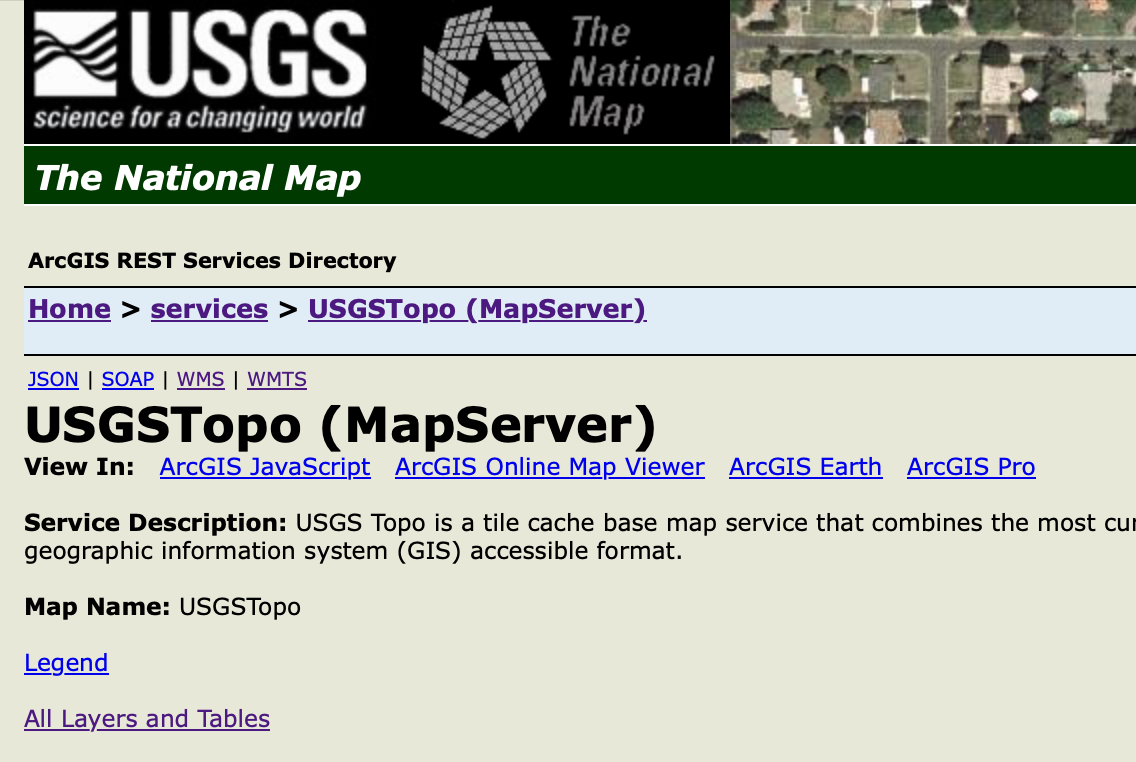
At the top left of the page, select the WMTS link to access the XML configuration file.
Required elements for configuration
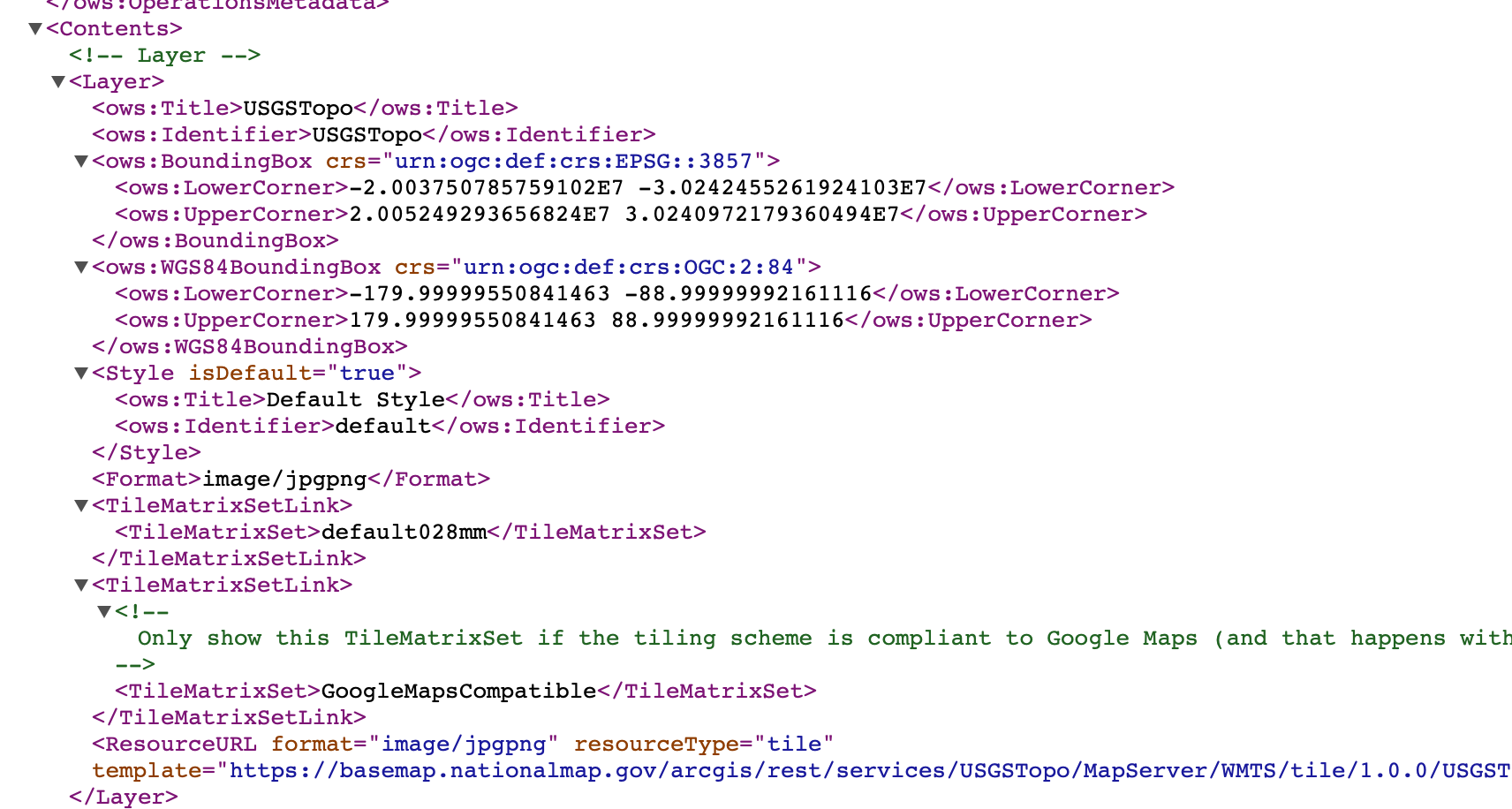
In order to configure the WMTS layer URL correctly, the following XML <Layer> elements are needed:
- EPSG:3857 (confirm this is shown in
<ows:BoundingBox crs="urn:ogc:def:crs:EPSG::3857"> - Style name:
<ows:Identifier>default</ows:Identifier> - image format:
<Format>image/jpgpng</Format> - tile matrix:
<TileMatrixSet>default028mm</TileMatrixSet>
Lastly, you need the full Resource URL for the WMTS, found here <ResourceURL template=:
https://basemap.nationalmap.gov/arcgis/rest/services/USGSTopo/MapServer/WMTS/tile/1.0.0/USGSTopo/{Style}/{TileMatrixSet}/{TileMatrix}/{TileRow}/{TileCol}
You can either search for these in the XML, or you can find them by navigating to the <Contents> section.
Configuring the WMTS URL
Since we have all of the information we need from the section above, we will configure the WMTS url by starting with the ResourceURL template= URL and replacing according to this table:
| WMTS | XML Source |
|---|---|
| {Style} | default |
| {TileMatrixSet} | default028mm |
| {TileMatrix} | {z} |
| {TileRow} | {y} |
| {TileCol} | {x} |
Finally, we have to specify the image type in the WMTS resource we are adding to Goat Maps. Because <Format>image/jpgpng</Format> allows for .png, we will use that to support transparency applied via the Goat Maps layer opacity slider.
So, we will take this resource url:
https://basemap.nationalmap.gov/arcgis/rest/services/USGSTopo/MapServer/WMTS/tile/1.0.0/USGSTopo/{Style}/{TileMatrixSet}/{TileMatrix}/{TileRow}/{TileCol}
and we will replace the WMTS required elements with our XML specs according to the table.
Here’s our final WMTS url we will plug in as a Custom layer in Goat Maps (web):
https://basemap.nationalmap.gov/arcgis/rest/services/USGSTopo/MapServer/WMTS/tile/1.0.0/USGSTopo/default/default028mm/{z}/{y}/{x}.png
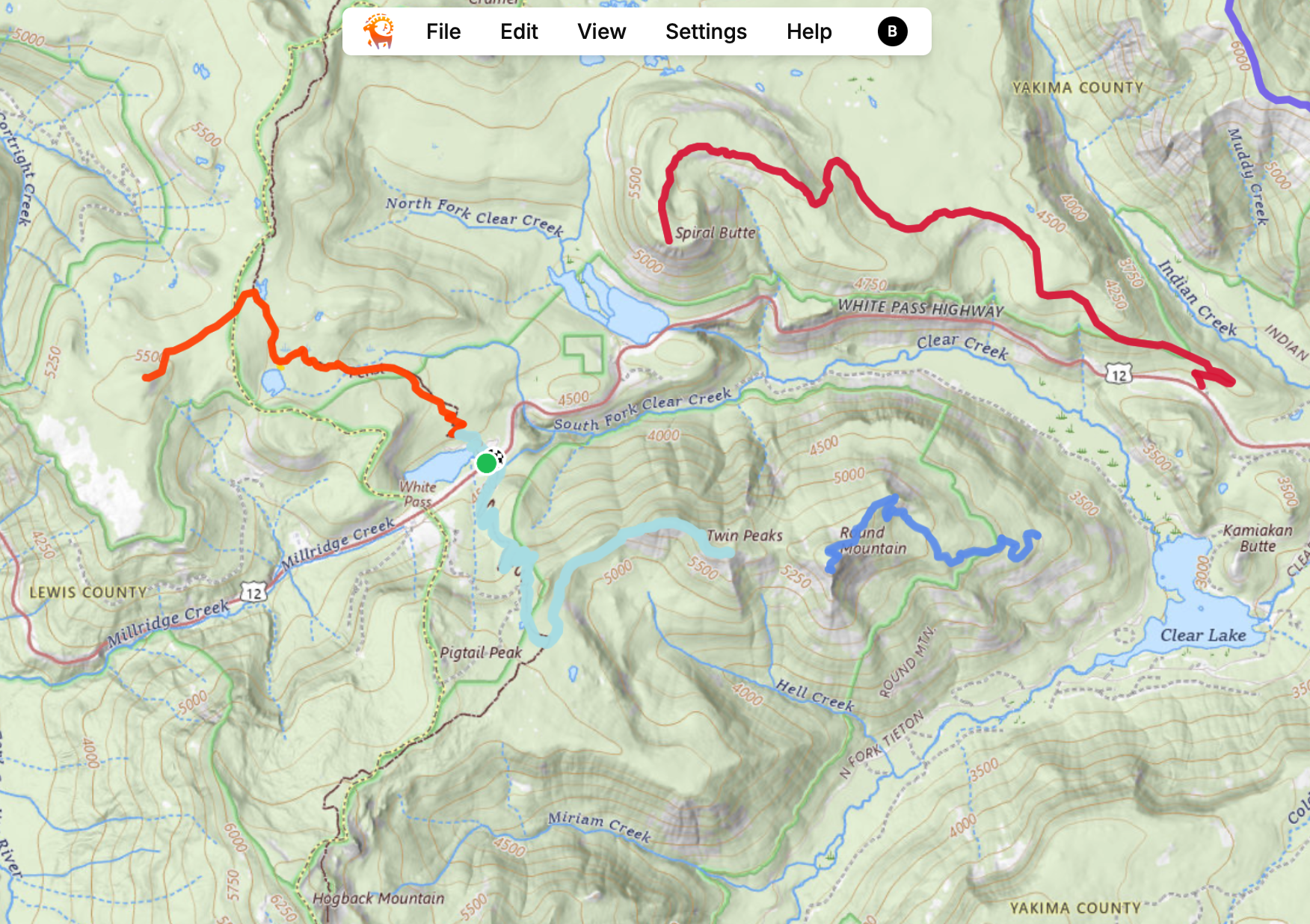
The WMTS loads and displays USGS Topo successfully, and we are off and running. Hope this helps.
Back to Essays and Notes
tags: geek - apps - maps