💻 🗺️ 📊 🌲
Brett / B.J. Marraccini
Bouncing between information systems, photography and outdoor adventures.
 Washington State
------------
Home
 Essays and Notes
 GitHub Profile
 Resume / CV
 Photography Portfolio
 My Ascent List
 bjmarra[at]outlook[.]com
A fresh install of Linux with QGIS
by B.J. Marraccini


Yes, I know it is 2026 and this stuff can be figured out by following the advice of our dumb LLM friends. But I wanted to capture this process manually because I enjoy tinkering with operating systems and basic command line/bash stuff.
In this note, I am walking through the steps to convert an older Lenovo IdeaPad FLEX14-API into a Linux laptop that I will primarily use for mapping and data visualization. After migrating my daily stuff over to a MacBook Pro, I rarely used the IdeaPad. It just sat in my garage as a tool to use if I needed to look something up on YouTube, like how to mount an awning to the roof of my Subaru, or researching Bioenno batteries for activating peaks with my ham radios. This IdeaPad has 18GB of RAM, and a decently-ok processor (AMD Ryzen 7 3700U), so it will be ok for the basic work I want to do: create some map-based artwork, and fiddle around with server-based layers.
Before we begin, know that the process below should be considered USE AT YOUR OWN RISK. I’m not responsible for bricking your machine or troubleshooting your issues. Ok, now that we’ve got that out of the way…
Migrating from Windows 11 to Linux
The Lenovo was a laptop I had since 2018 (I think) and it has Windows 11 installed, with the latest updates. To start, I made sure there wasn’t any data of value on my Lenovo (there wasn’t), and so I decided to take the leap and fully convert this laptop into a Linux machine. The big overview of how I did this is:
Download Linux ISO > Download Rufus > Run Rufus to format a bootable USB > Configure BIOS > Boot from USB to Install
My specific steps are listed below:
Retrieving Source files for installation
- Choose your Linux OS. I chose Linux Mint, Cinammon Edition.
- Download the Cinanamon ISO installer file from one of the mirrors and save locally. It is about 3GB in total.
- Grab a copy of Rufus (rufus.ie) so that you can create a bootable USB drive, where we will store the ISO installer
- Security note: before downloading any .exe, copy its resource link first and paste that into Virus Total to make sure the file is clean.
Formatting the Bootable USB drive
- Go to your Downloads folder where Rufus and the Linux ISO are stored. Open the Rufus executable
- In Rufus, the next steps will format a USB drive to make it bootable, and load the Linux ISO
- plug in your USB device (minimum 8GB)
- Rufus will find your USB automatically. keep in mind this process will reformat your USB completely.
- For Boot Selection, choose ISO and then click Select. Navigate and choose the Linux ISO file you downloaded
- Partition System: choose GPT if your BIOS Mode is
UEFI. (Choose MBR if your Biod Mode isLegacy) - Under format option, rename the USB to something that you’ll remember
- Leave other settings as-is, then click start. Confirm the warnings.
- Rufus will reformat your USB, make it bootable, and load the Linux ISO installer
- keep the USB plugged in for the next steps
Configure BIOS to boot from USB
This one was more difficult that it needed to be. Usually to configure BIOS, you would reboot the windows machine and hold one of F2, F8 or F12 as soon as the machine turns back on. None of these worked for me on the Lenovo, even when also trying the same keys with the fn held down. So, I had to go the long way to get to BIOS. Disregard the windows-based steps if one of those keys works for you to get to the Configure BIOS screen.
In Windows 11:
- System Settings > Recovery > Advanced Setup > Restart Now
- Choose an Option: troubleshoot > Advanced Options > UEFI Firmware Settings > Restart
In the BIOS (UEFI) blue screen:
- On the Blue BIOS (UEFI) screen, navigate to
Security- ensure
Secure Bootis disabled (this is critical, otherwise the Linux Mint install will fail to launch)
- ensure
- On the Blue BIOS screen, navigate top menu to
Boot- Change Boot Option #1 to the USB drive. (You can also use the + and – keys to move devices up or down in the priority list)
Note: The boot order is a priority list. For example, if “USB drive” is above “hard drive” in your boot order, your computer will try the USB drive first. If USB is not connected then boot will initiate from the hard drive.
- Change Boot Option #1 to the USB drive. (You can also use the + and – keys to move devices up or down in the priority list)
- On the Blue BIOS screen, navigate top menu to
Save and Exit- choose
Save changes and exit - once the machine restarts, it will boot from the attached USB
- choose
Installing Linux Mint Cinnamon Edition
The install will begin with a floating terminal. Then Linux Mint will display as a desktop. This is test mode, not a live install. It is also where you will select your configurations for the Linux OS install on the machine.
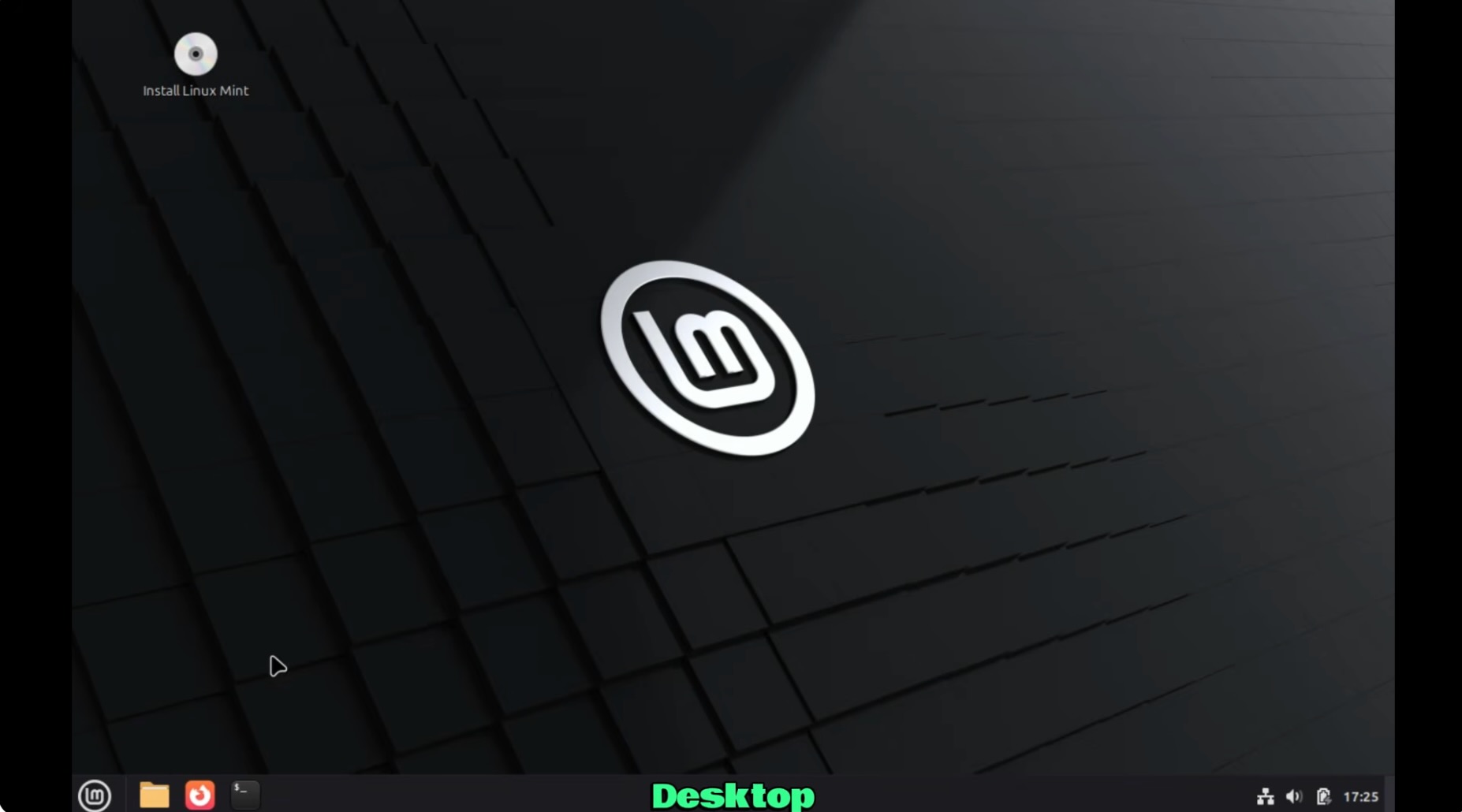
To install, open the Install Linux Mint icon at upper left of display. This will initiate the installation. The options are pretty familiar, but I recommend the following:
- select the checkbox for multimedia codecs if you like things such as playing music and movies. I want to use Spotify on this machine, so I checked it.
- for Installation Type I chose:
Erase Disk and install Linux Mint. I have no need for Windows on this machine anymore and I have my all of my data/files backed up redundantly (3-2-1 strategy) across the cloud and offline HDs. By choosing this option, know that the entire hard drive on your machine will be erased, so that means all of Windows installs, data, settings and configurations, etc. Gone. - after setting your region, add your user name, machine name and credentials. The installation will begin and maybe take 5 minutes or so. Once finished, restart your machine.
QGIS Installation and Configuration
Now that Linux is installed, there’s a distinct fresh feeling is in the air. It’s time to install and configure QGIS. These next steps will cover how to identify the QGIS distribution version, configure apt and QGIS repository, and install the application.
QGIS.org has a great installation guide available, and should be your default starting point for the latest repository and configurations. The steps below are a condensed version, focused on my particular needs, as well as some system configurations that aren’t detailed in the QGIS guide.
First, will need to install tools to support the QGIS installation.
sudo apt install gnupg software-properties-common
Then install the QGIS Signing key, for future trusted software installs.
sudo mkdir -m755 -p /etc/apt/keyrings
sudo wget -O /etc/apt/keyrings/qgis-archive-keyring.gpg https://downloads.qgis.org/downloads/qgis-archive-keyring.gpg
Next, need to store a configuration file containing repository information to the /etc/apt/sources.list.d directory. My user did not have write privileges to this directory, so I had to diverge briefly from the QGIS installation guide to give my user privies in that directory:
sudo chown -R $USER:$USER /etc/apt/sources.list.d
sudo apt update
OK, back to that configuration file. I chose the Ubuntu long-term release, and selected the appropriate Suites codename from the QGIS distribution versions table. I used Sublime text and copied in the following:
Types: deb deb-src
URIs: https://qgis.org/ubuntu-ltr
Suites: noble
Architectures: amd64
Components: main
Signed-By: /etc/apt/keyrings/qgis-archive-keyring.gpg
Then I saved that file as /etc/apt/sources.list.d/qgis.sources.
After closing the file, I updated my apt configuration to recognize that new repo file.
sudo apt update
Finally – ready to install QGIS
sudo apt install qgis qgis-plugin-grass
The installer completed, and I was able to open QGIS on the fresh install of Linux on my Lenovo IdeaPad FLEX 14-API. When I’m ready to install QGIS Server in the future:
sudo apt update
sudo apt install egis-server --no-install-recommends --no-install-suggests
# and for python plugins to QGIS Server
apt install python3-qgis
Resources used in preparing this guide
Back to Essays and Notes
tags: geek - linux - qgis